

Git for Beginners: Basics and Essential Commands
Git essentials for dev enthusiasts
Introduction
If you’re learning development and don’t understand Git, you’re not ready at all. Git is not optional. It’s not “for later”. It’s the foundation of software development.
Git is a distributed version control system that helps developers:
Track changes in code
Collaborate without overwriting each other’s work
Roll back mistakes safely
Maintain a clean project history
This article explains Git from scratch, without assuming prior knowledge but without dumbing it down either.
What Is Git?
Git is a version control system (VCS) created by Linus Torvalds in 2005.
In simple terms:
Git records snapshots of your project over time so you can move backward, forward, and collaborate safely.
What Git is NOT (common misconception)
Git is not GitHub
Git is not only for teams
Git is not a backup tool (it’s smarter than that)
NOTE: Git also works locally on your machine, even without internet for personal use.
Why Git Is Used (Real Reasons, Not Buzzwords) ?
Developers use Git because it solves real problems:
1. Version History
Every change is tracked. You can: see who changed what , see why a change was made , revert mistakes instantly.
2. Collaboration Without Chaos
For example, multiple developers can work on the same project simultaneously without overwriting each other’s code.
3. Experimentation Without Fear
For example, working on branches that let you: try features, break things safely , merge only what works.
4. Industry Standard
Every serious company expects Git knowledge. If you skip Git, you’re blocking your own career growth in tech industry.
Git Basics & Core Terminologies
1. Repository (Repo)
A repository is a project tracked by Git. It contains your project files , complete version history , Git configuration , etc.
Two types:
Local repository → on your machine
Remote repository → GitHub, GitLab, Bitbucket
2. Commit
A commit is a saved snapshot of your project at a specific point in time.
Each commit has:
A unique hash (ID)
Author info
Timestamp
Commit message
For example,
commit message: "Add login form validation"
3. Branches
A branch is an independent line of development.
Scenario: When team of developers work on large project , they need multiple branches for developing different sections of project by different developer to maintain the synchronization among all the developers without breaking main code.
4. HEAD
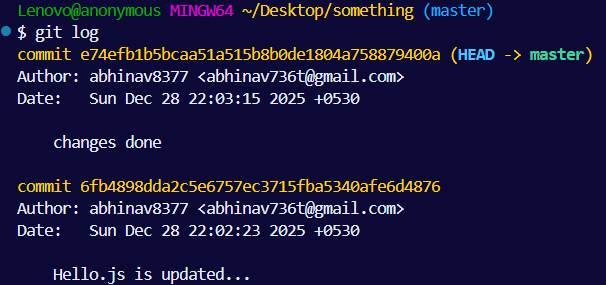
HEAD is a pointer which refers to the current branch and the latest commit you’re working on.
For example, HEAD points out to the master branch.
Git Working Areas
This is where most beginners get confused.
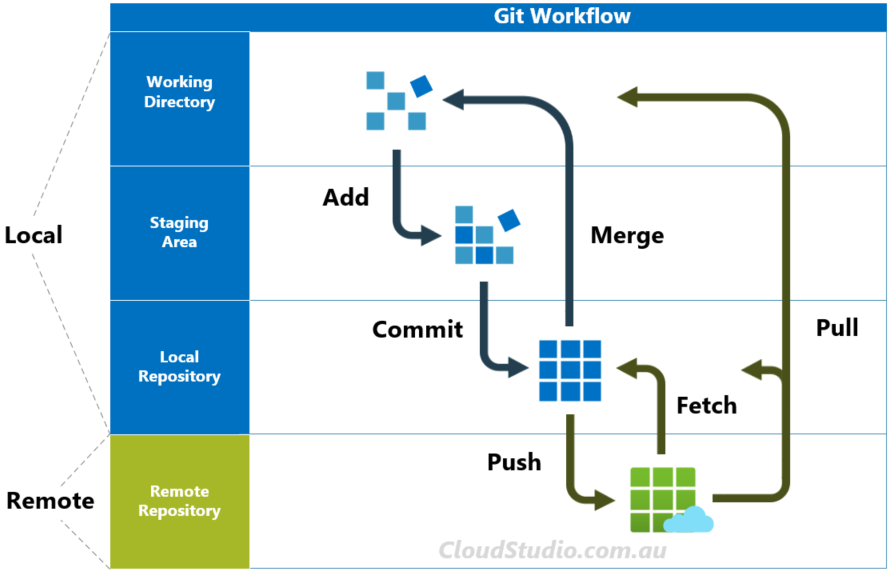
Working Directory → Staging Area → Repository
Git has three areas
1. Working Directory
Where you edit project files.
Changes are NOT tracked automatically.
2. Staging Area (Index)
The area where you prepare changes according to project , for eg , adding new feature in same file.
You choose what goes into the next commit.
3. Repository
- Where committed snapshots are stored permanently in .git/ directory
Diagram: Git Workflow
Commit History Flow
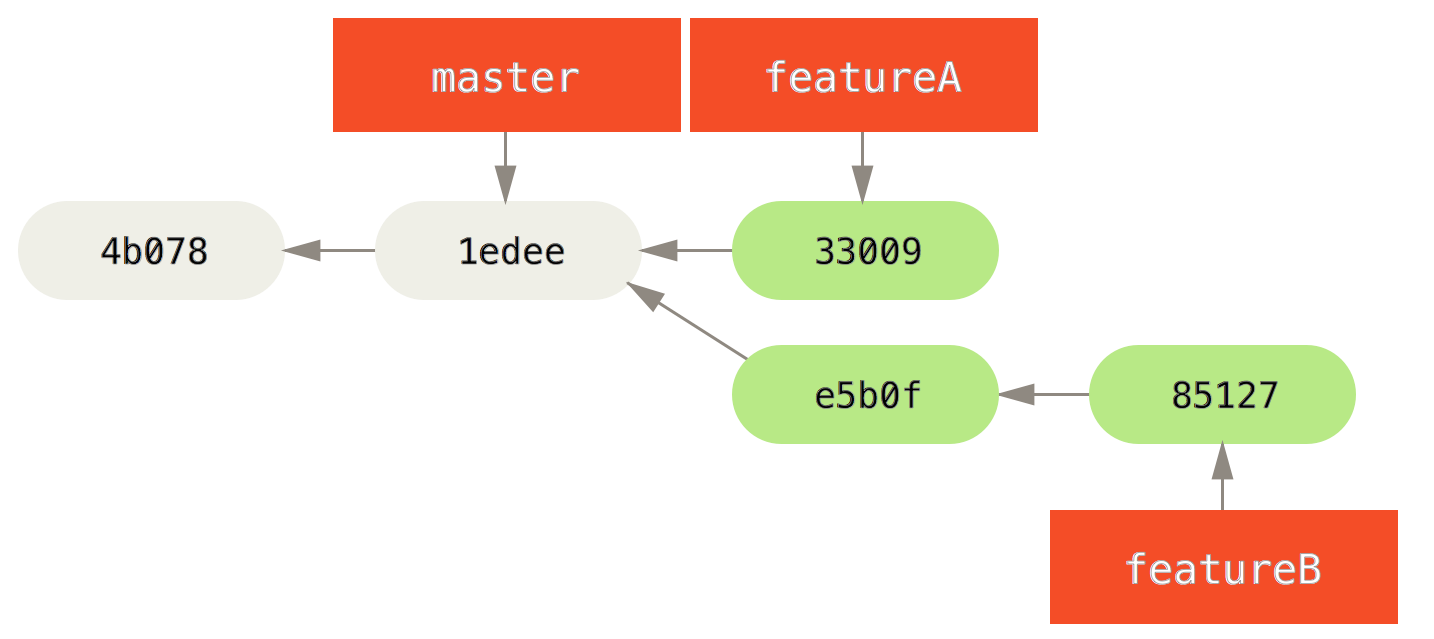
This helps to understand the working flow of commits. The below diagram is just an example to show git commit history flow, which looks like in a diagrammatically form.
Each commit:
Depends on previous commit
Forms a chain
Allows rollback at any point
This is why Git is reliable.
Common Git Commands
1. git init - Initializes a new Git repository and creates a hidden “.git” directory - the brain of Git.
Command:
$ git init
Output:
Initialized empty Git repository in C:/Users/Lenovo/Desktop/something/.git/
2. git status - Shows the current state of your repository.
Command:
$ git status
Output:
On branch master No commits yet
Untracked files: (use "git add ..." to include in what will be committed) hello.js
nothing added to commit but untracked files present (use "git add" to track)
3. git add <filename> or git add . - Moves changes to the staging area.
Command:
git add file.txt
git add .
4. git commit - Creates a snapshot of staged changes.
Command:
$ git commit -m "changes updated..."
Output:
[master (root-commit) c8ae34a] changes updated...
1 file changed, 2 insertions(+)
create mode 100644 hello.js
5. git log - It Shows commit history.
Command:
$ git log
Output:
commit c8ae34a46789122f1099e5bee6282842fa5a3545 (HEAD -> master)
Author: abhinav8377 abhinav736t@gmail.com
Date: Sun Dec 28 22:38:04 2025 +0530
changes updated...
6. git revert - It used to rollback changes and move back to previous commit
Command:
git revert a1b2c3d
Output:
[master e5f6g7h] Revert "changes updated…"
1 file changed, 3 deletions(-)
7. git push - It uploads your local commits to a remote repository (like GitHub, GitLab, Bitbucket).
Command:
git push origin main
Output:
Enumerating objects: 5, done.
Counting objects: 100% (5/5), done.
Delta compression using up to 8 threads Compressing objects: 100% (3/3), done.
Writing objects: 100% (3/3), 345 bytes | 345.00 KiB/s, done.
Total 3 (delta 2), reused 0 (delta 0)
To https://github.com/user/repo.git 1edee..e5b0f main -> main
Local Repository Structure Overview
After initialization of the project , It will look like this:
project-folder/
├── .git/     ← Git internals (DO NOT TOUCH)
├── index.html
├── style.css
└── script.js
Conclusion
This article covers the essentials of Git, a crucial version control system in software development created by Linus Torvalds. Git enables tracking of code changes, facilitates collaborative work, and supports safe experimentation and project history management. The guide explains core concepts such as repositories, commits, branches, and the Git workflow, alongside basic commands like `git init`, `git status`, and `git commit`. The piece aims to demystify Git for beginners, highlighting its importance in the tech industry and providing a foundational understanding for practical use.


